The member directory
Members, in your chapter's menu, lists the members of your chapter.
Searching the directory
If your membership includes the full directory, you see every listed member, 24 to a page by last name, and can search them. Type a name, company, title, or what they can help with, then Search.
- Every word you type has to match. Accents don't matter: "garcia" finds "García".
- Browse by what members can help with shows the most-used topics, such as finance or hospitality. Click one to see who lists it.
- Members set to Ghost aren't listed, and you never see yourself.
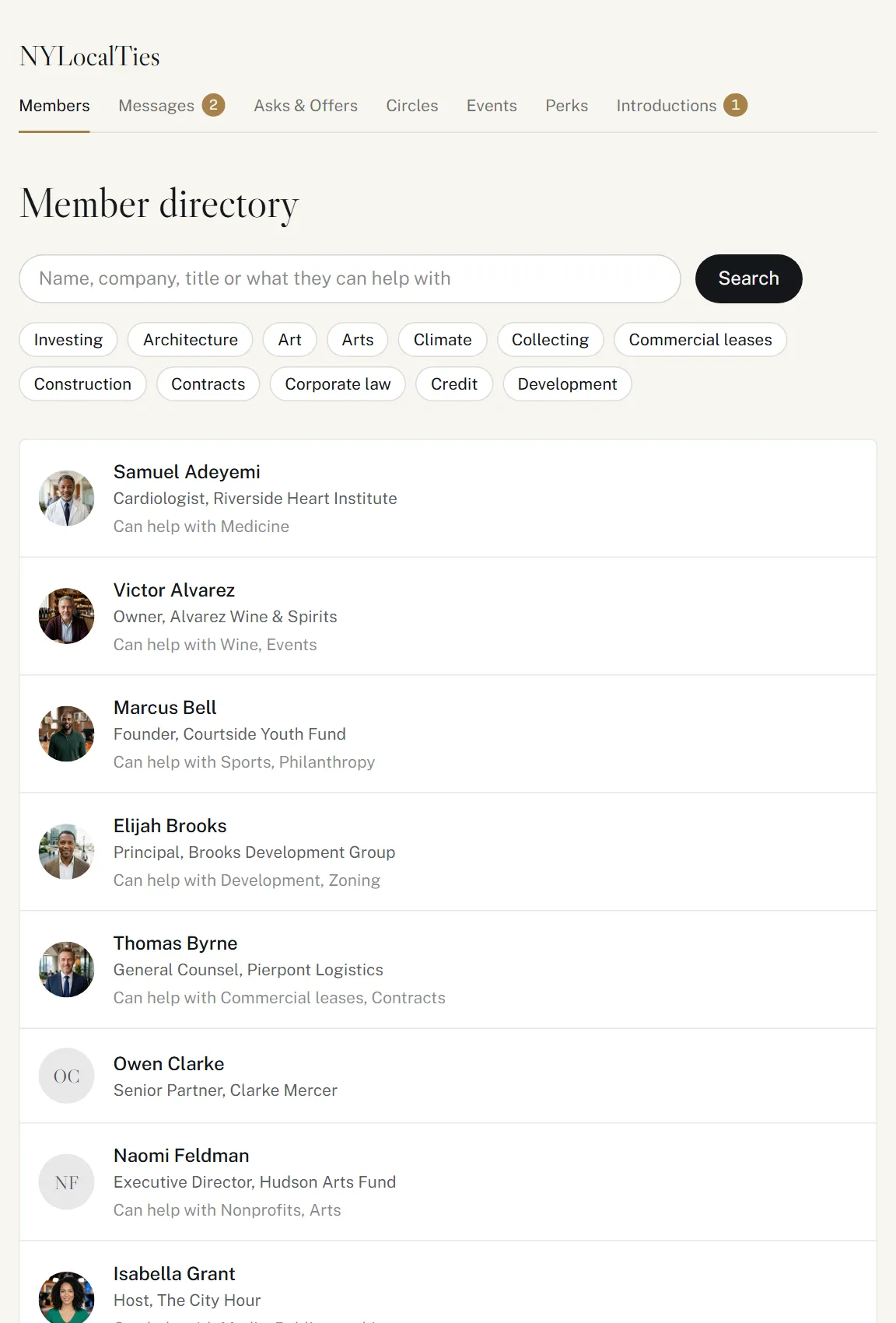
With a free account, or a membership that doesn't include the full directory, the page shows the public directory instead: the names, titles, companies and states anyone can see, searchable by name, title or company.
A member's profile
Click a member to open their profile. What you see depends on their choice of who can find them (see Your profile) and on your membership:
- Visible members: their photo, bio, and what they can help with and are looking for, if your membership includes full profiles.
- Limited members: their name, title, company and state only.
- Ghost members: they aren't in the directory, and their profile can't be opened.
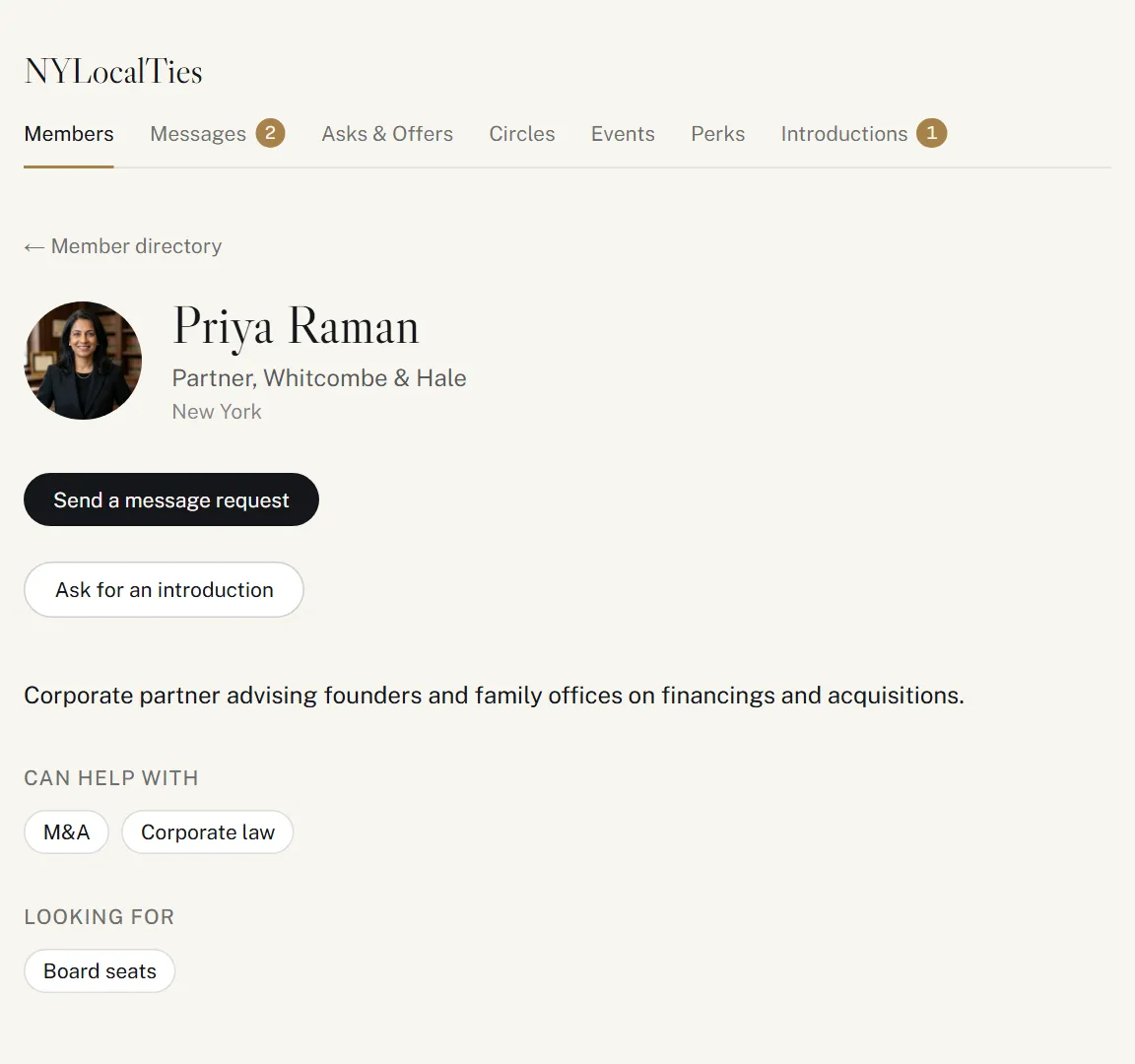
From a profile you can send a message request or ask for an introduction, when your membership includes them.
Your own profile
Open your own profile from the directory to see it as other members do. It says who can find you, and whether you have a public profile. Edit it in your account takes you to Your profile.
The public directory
Anyone, signed in or not, can see a chapter's public directory at its Members page: current members who haven't turned their public profile off and aren't set to Ghost, with their name, title, company and state, and the photo of Visible members. Search engines can show it too. Free accounts are never in it.
You can leave it at any time: see Your profile.